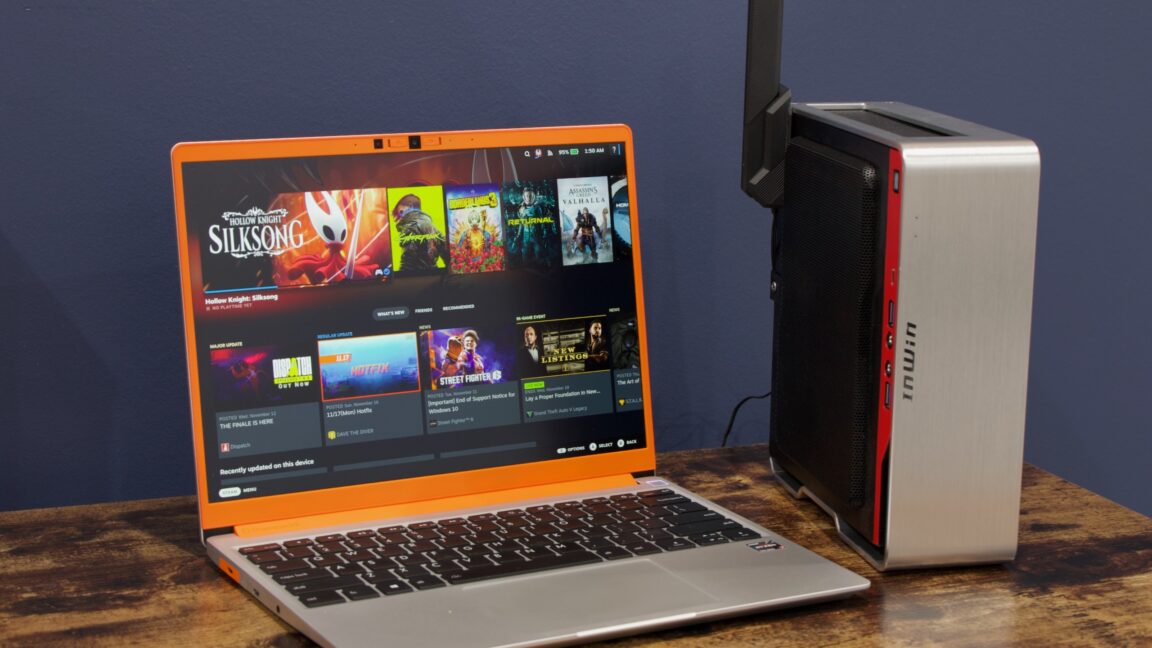
By the time this had happened twice, I was sure it wasn’t a fluke; by the time it had happened four or five times, I was determined to blow the entire operating system away and try again. And I was particularly interested in trying actual, for-real SteamOS again, just in case a new Bazzite install would have the same problems as the one I was already using.
After some digging, I found this directory. If you look through those folders, you’ll see OS images for various versions of SteamOS, including newer versions of SteamOS 3.7 (the “stable” version you’ll find on the Deck) and builds of both SteamOS 3.8 and 3.9 (the Deck will pull these down if you switch from the “stable” OS channel to “main”). Not all of those folders include the repair image you need to wipe a device and install SteamOS, but a few do—this one, dated October 27, is the most recent as of this writing.
Those newer versions of the operating system include changes that expand SteamOS’s hardware support, most notably a step up from Linux kernel version 6.11 to version 6.16. And it was that steamdeck-repair-main-20251027.1000-3.8.0.img.zip file that I was finally able to flash to a USB drive and install on my TV desktop using Valve’s instructions.
It has only been a week or so since then, but at least so far I’m finally getting what I wanted: the same experience as on my Deck, just on my TV, with hardware that is somewhat better-suited for a larger and higher-resolution screen (and that’s the main reason to do this, rather than use a docked Steam Deck for everything).
The SteamOS experience
The “console-like experience” designed for the Steam Deck also works well with a TV and a gamepad.
Credit:
Valve
Once the OS is installed and is up and running, anyone who has used a Steam Deck will find it instantly familiar, and all you’ll need to do to get going is connect or pair a gamepad and/or a keyboard and mouse.


