
Windows 11’s notification center delivers notifications to your desktop from specific apps. However, if you don’t want to receive notifications at all, or want to turn off notifications in Windows 11 for certain apps, you can do this easily through the System Settings. Similarly, you can decide which notifications to receive at certain times of the day.
Image used with permission by copyright holder
How to turn off Windows 11 notifications
Windows 11 notifications can be useful, but not at all times. It’s possible to turn all notifications on or off, as well as select which apps have priority when do not disturb is on. By knowing how to turn on Windows 11 notifications, you can ensure you only receive important information when you need it.
To customize your Windows 11 notifications, you’ll need to go through the following steps. This will allow you to turn notifications on or off for apps on your device.
Step 1: Select Start> *Settings**> *System*> *Notifications*.
Step 2: Select Notifications to expand, turn notifications on/off, turn banners on/off, and turn sounds on/off.
Step 3: If you want to turn off tips and suggestions about Windows, scroll down to Additional settings and toggle the options on/off.
How to use Windows 11 do not disturb
If you want notifications to appear on your Windows 11 device only during certain times, for example, outside of work hours, you can turn on Do not disturb. This will ensure you keep your focus on what’s important.
Step 1: Select Start> Settings> System> Notifications
Step 2: Navigate to Do not disturb and toggle on/off.
Step 3: To turn on Do not disturb automatically, you can navigate to the Turn on do not disturb automatically option and select a specific time to turn on notifications.
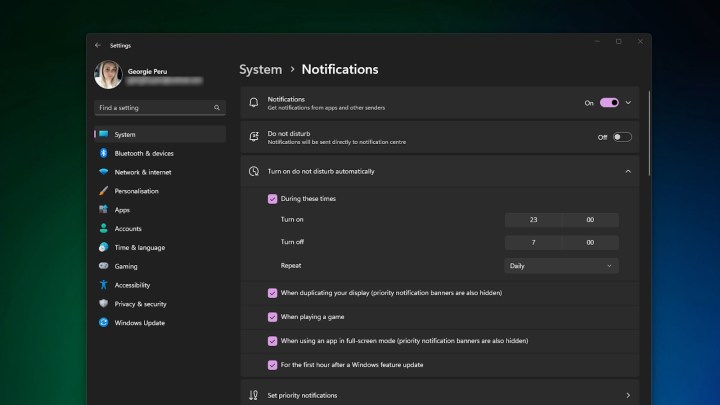
Image used with permission by copyright holder
How to prioritize notifications
Using Windows 11 do not disturb notification settings can stop notifications when you don’t want them to appear. However, there may be some app you want to receive notifications from, like Mail, which can remain in the notification center even while do not disturb is on.
Step 1: Select Start> Settings> System> Notifications.
Step 2: Navigate to Set priority notifications.
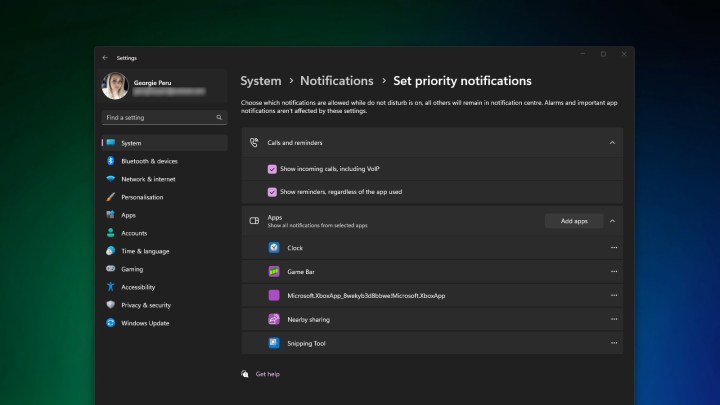
Image used with permission by copyright holder
Step 3: Select Add apps to choose which app or apps you want to receive notifications from.
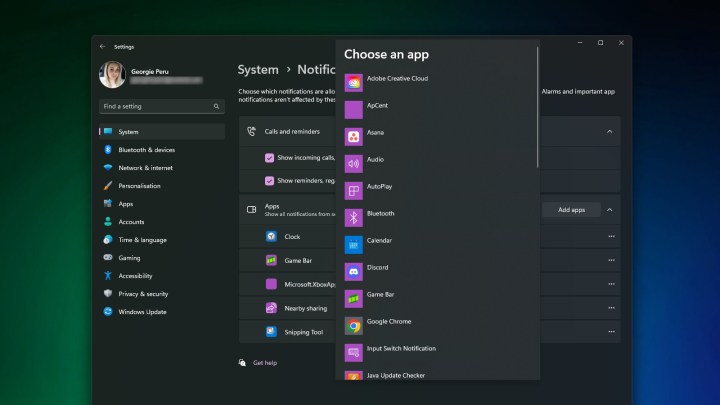
Image used with permission by copyright holder
Editors’ Recommendations


