[ad_1]
The Yale Assure Lock 2 is one of the best smart locks on the market, but it’s not without a few hiccups. Like all electronics, it’s bound to run into issues from time to time — one of which is a problem connecting to Apple Home. What makes this problem particularly frustrating is that there could be many culprits, ranging from an out-of-date iOS to dead batteries in your smart lock. To help you navigate all the possibilities, here’s a comprehensive look at how to fix a Yale Assure Lock 2 that won’t connect to Apple Home.
Connect your Yale Assure Lock 2 to Apple Home with these basic troubleshooting steps
Thankfully, most users will find that they can get their Assure Lock 2 reconnected to Apple Home in just a few seconds. Here are the most common fixes to the problem (all of which take just a few seconds). If you still have trouble after checking and performing these steps, consider scrolling down to some more in-depth options.
- Update the OS on your phone. Apple pushes updates frequently, and if you’re running the wrong operating system, you could run into snags with your smart lock.
- Update your lock’s firmware. This can be checked with the Yale app.
- Verify you can lock and unlock your door with the Yale app. While doing this, see if you have a pop-up asking you to sync with HomeKit. This often is the case if HomeKit was recently installed in the home.
- Restart your iPhone.
- Confirm your other Apple Home devices are working and it’s not a local connection issue
- Check the batteries in your Yale Assure Lock 2
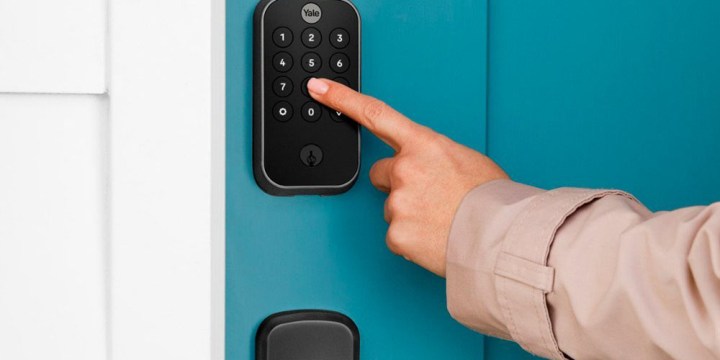
Yale
Reconnect to HomeKit
If none of the above solutions work, you can try performing a fresh connection between your Assure Lock 2 and Apple Home.
Step 1: Open the Yale app and navigate to Lock Settings.
Step 2: Select HomeKit, then select Remove HomeKit Accessory.
Step 3: Verify your lock has been removed by checking the Home app.
Step 4: Dive back into the Lock Settings menu in the Yale app.
Step 5: Select HomeKit and follow the prompts to reconnect it to HomeKit.
Factory reset your Yale Assure Lock 2
The last thing you can try is a factory reset of your Yale Assure Lock 2. Keep in mind that this will turn your lock into a blank slate, removing your settings and other configurations.
Step 1: Go to Lock Settings in the Yale app.
Step 2: Select Factory Reset, then confirm the action by pressing Reset Lock.
Step 3: Load the Home app and verify your lock is gone.
Step 4: Set up your lock following the steps in the Yale app, including the steps for syncing with Apple Home.
Editors’ Recommendations
[ad_2]
Source link