
Turning data into percentages can give you a new insight, or make summarizing heaps of data a bit easier. This is where the percentage formula in Excel can give you the answer you need in seconds. And don’t worry, calculating percentages in Excel doesn’t require complicated steps. Let us show you how to get it done.
Here’s how to calculate percentages in Excel.
What is the formula to calculate percentage?
There are various formulas you can use to calculate a percentage. Here are two of the most common methods.
Step 1: In this specific example, I’ll be calculating the difference between the profit and revenue. Select the cell you want the percentage to appear within. Now type in =(B2-C2)/B2. The / represents the division function.
Image used with permission by copyright holder
Step 2: Press the Enter key on your keyboard in order to confirm the formula.
Step 3: In the toolbar, select the Percentage icon. In my example, there’s a 65% difference between the profit and revenue. If I change the profit amount to a higher figure, that percentage will decline.
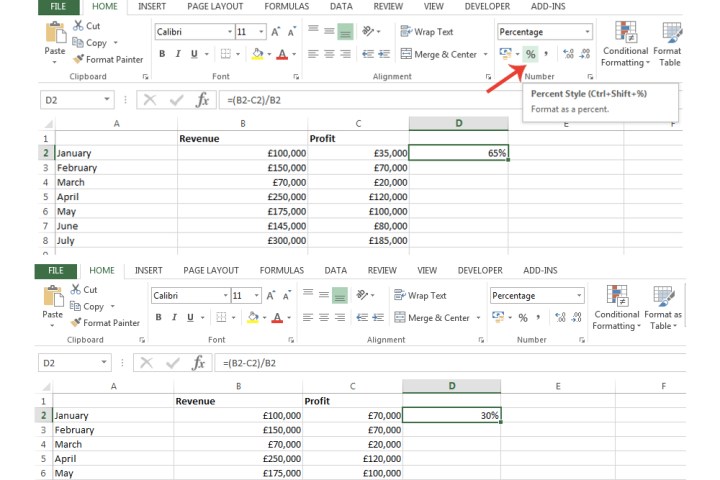
Image used with permission by copyright holder
Step 4: Another formula you can use to calculate percentage is simply applying the / key in between two cells. For example, to pass a driving theory test, I need to get 80% of the questions correct. To find out the percentage for this specific question, I’ve entered =B2/C2.
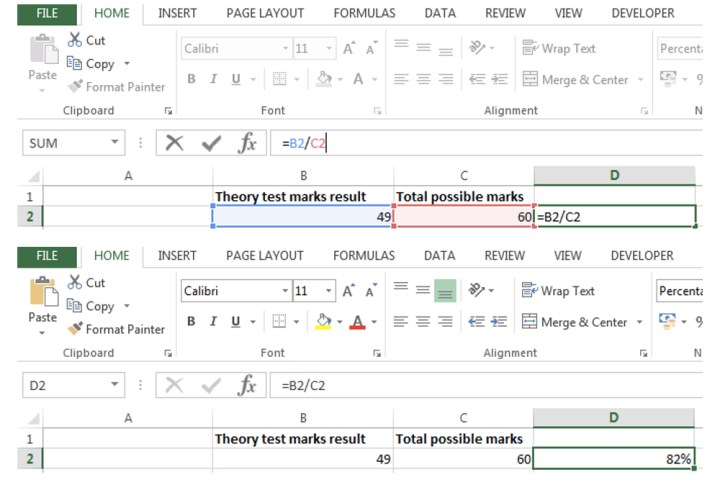
Image used with permission by copyright holder
What is the easiest way to find percentages?
Now that we’ve explained how to calculate percentages, let’s take a look at the easiest way to find percentages via the drag feature.
Step 1: Select the cell where you’ve entered the formula to calculate a percentage.
Step 2: On the bottom-right corner of that cell, drag it down to where your column ends, or wherever you want percentages to be shown.
In my example, I’ve dragged it down to reveal the difference between the percentage of profit being generated compared to the revenue for each month that’s listed within my spreadsheet.
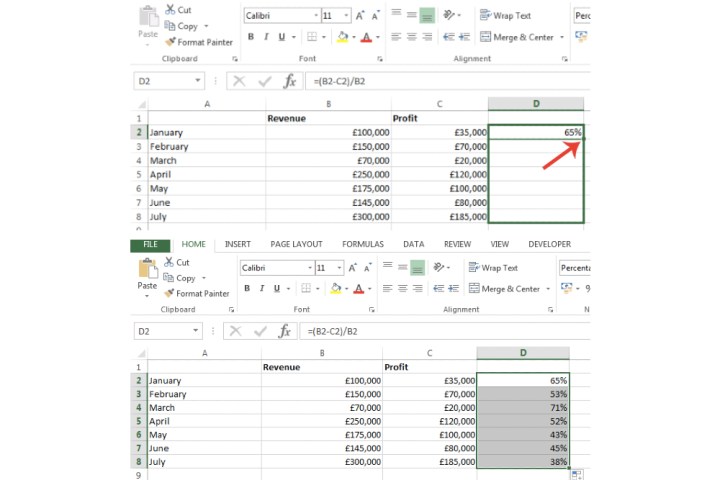
Image used with permission by copyright holder
How do I find 10% of a number in Excel?
Finding a specific percentage of a number within your spreadsheet can be achieved via a straightforward formula.
Step 1: Select the cell you want to find the percentage of a number in.
Step 2: Now enter, for example, =10%50. The asterisk in this formula represents the multiplication function. Press *Enter on your keyboard to confirm the result.
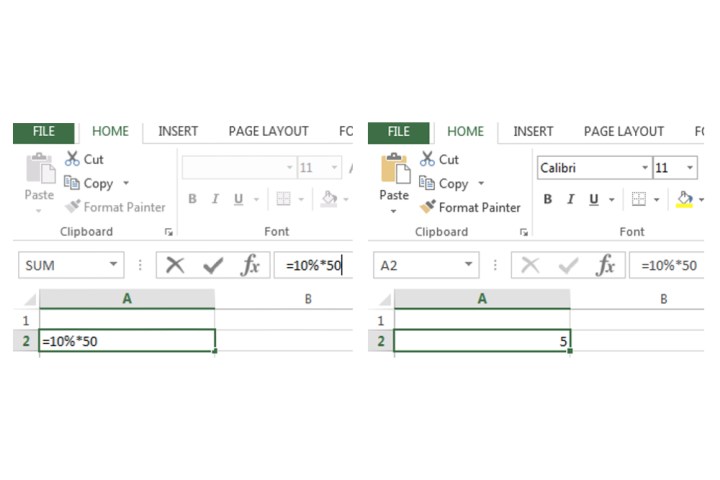
Image used with permission by copyright holder
Step 3: I’ve applied this same formula on my main Excel profit versus revenue spreadsheet as well. Just replace the number 50 with the cell number where the figure is located.
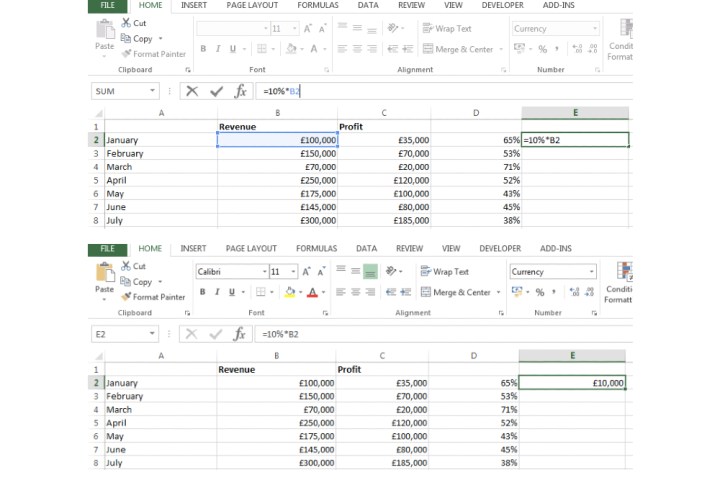
Image used with permission by copyright holder
For more on Excel’s other functions, check out our guides on how to use concatenate, and how to use IF in Excel.
Editors’ Recommendations


