
Smartphone apps are great. They’re quick to load, and generally well optimized. But have you ever noticed that they tend to get faster at loading after you’ve used them a bit? That’s not your mind playing tricks on you; it’s because your Android smartphone doesn’t tend to close apps even when you’re done with them. Instead, it keeps them tucked away in its memory. This makes going back to apps faster, and if it becomes a memory hog, Android generally knows how to fix that.
But that isn’t always the case, and in some rare situations, closing an app is required — whether it’s because it’s slowing your phone down, or just because you don’t want it running in the background. There are a number of ways to do this, from closing a single app, to all apps at once. And as a last resort, there’s the nuclear “force close” option.
We’ll show you how to do them all. Here’s how to force close apps on Android.
Joe Maring / Tech Reader
How to close Android background apps
If you wish to close an application, your best bet is to swipe it away within Android’s multitasking interface. Depending upon your version of Android and your smartphone manufacturer, this process can differ slightly, but it’s generally the same whether you’re using a Google Pixel 8 Pro or OnePlus 12. Follow the instructions below to close applications with ease.
Step 1: Access your multitasking interface using one of the following options:
- If your smartphone has three icons at the bottom of the screen, tap either the three vertical lines button (Samsung Galaxy devices) or the square button (most other Android devices).
- If your smartphone has a single horizontal line and uses a swipe-gesture system to navigate, swipe up from the bottom to the middle of the screen, hold for a moment, then release.
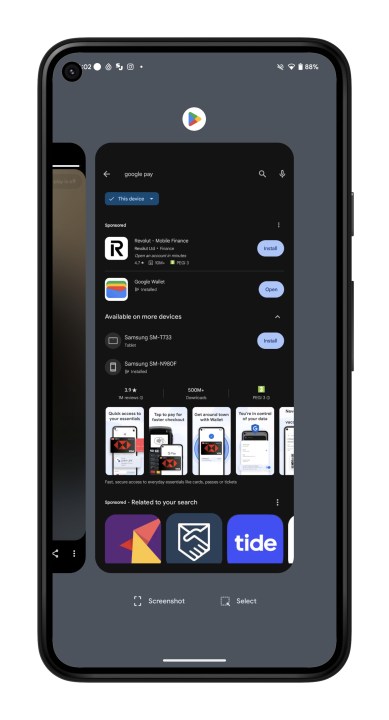
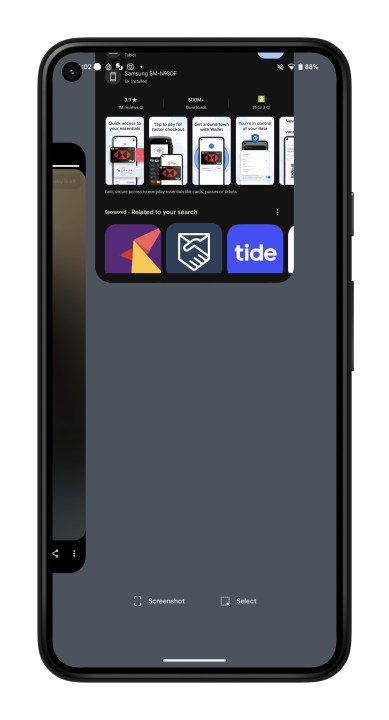
Step 2: Place your finger on the app you wish to close, then swipe it up and away.
Note: Due to the vast array of smartphone manufacturers, some older Android devices may handle accessing multitasking differently. Visit your manufacturer’s support page for more information on using multitasking with Android.
How to close all background apps
Another option that may allow you to work more efficiently with your smartphone is to close all Android background apps with a single button press; this can be useful when you want to free up your smartphone’s memory to help run other applications. Follow the steps below to close all Android background apps with a single tap.
Step 1: Access your multitasking interface using one of the following options:
- If your smartphone has three icons at the bottom of the screen, tap either the three vertical lines button (Samsung Galaxy devices) or the square button (most other Android devices).
- If your smartphone has a single horizontal line and uses a swipe-gesture system to navigate, swipe up from the bottom to the middle of the screen, hold for a moment, then release.
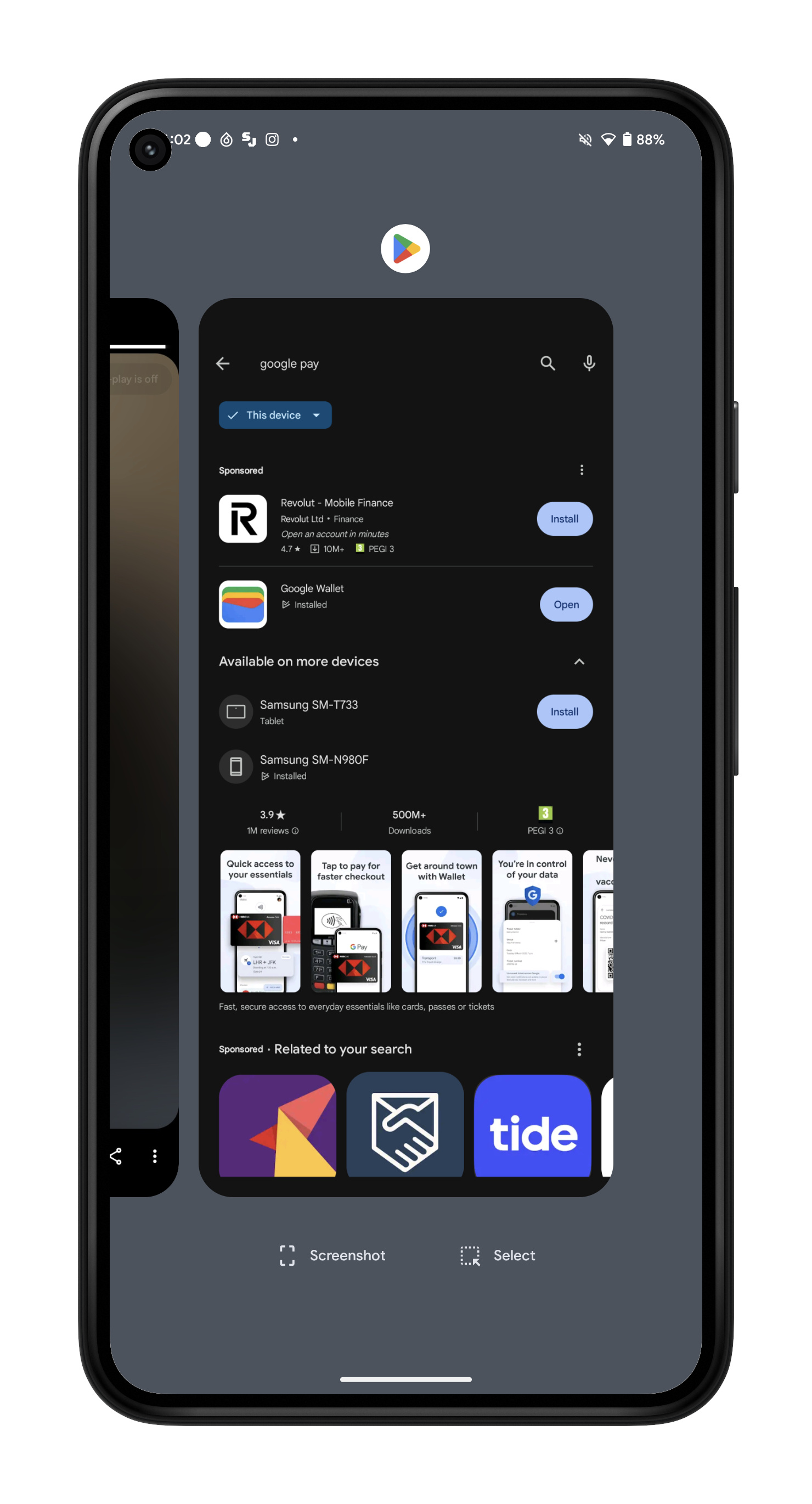
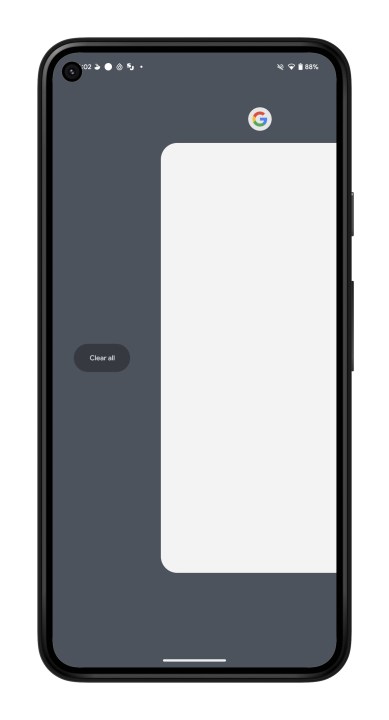
Step 2: Continue swiping to the right in the multitasking interface until you reach the list’s end. On some phones, like the Samsung Galaxy S24 Ultra, you can skip this step.
Step 3: A Clear all or Close all button should now be visible; tap it to close all open applications.
Note: As noted previously, due to the vast array of smartphone manufacturers, some older Android devices may handle accessing multitasking differently. You can visit your manufacturer’s support page for more information on using multitasking with Android.
How to force close an Android app
There may be instances when an application refuses to close in a usual manner or leaves other services running in the background. You may choose to force close the application in these situations, using the Android Settings app to halt the app completely. On most Android devices, force closing an app can be handled in the following manner:
Step 1: Open the Settings app.
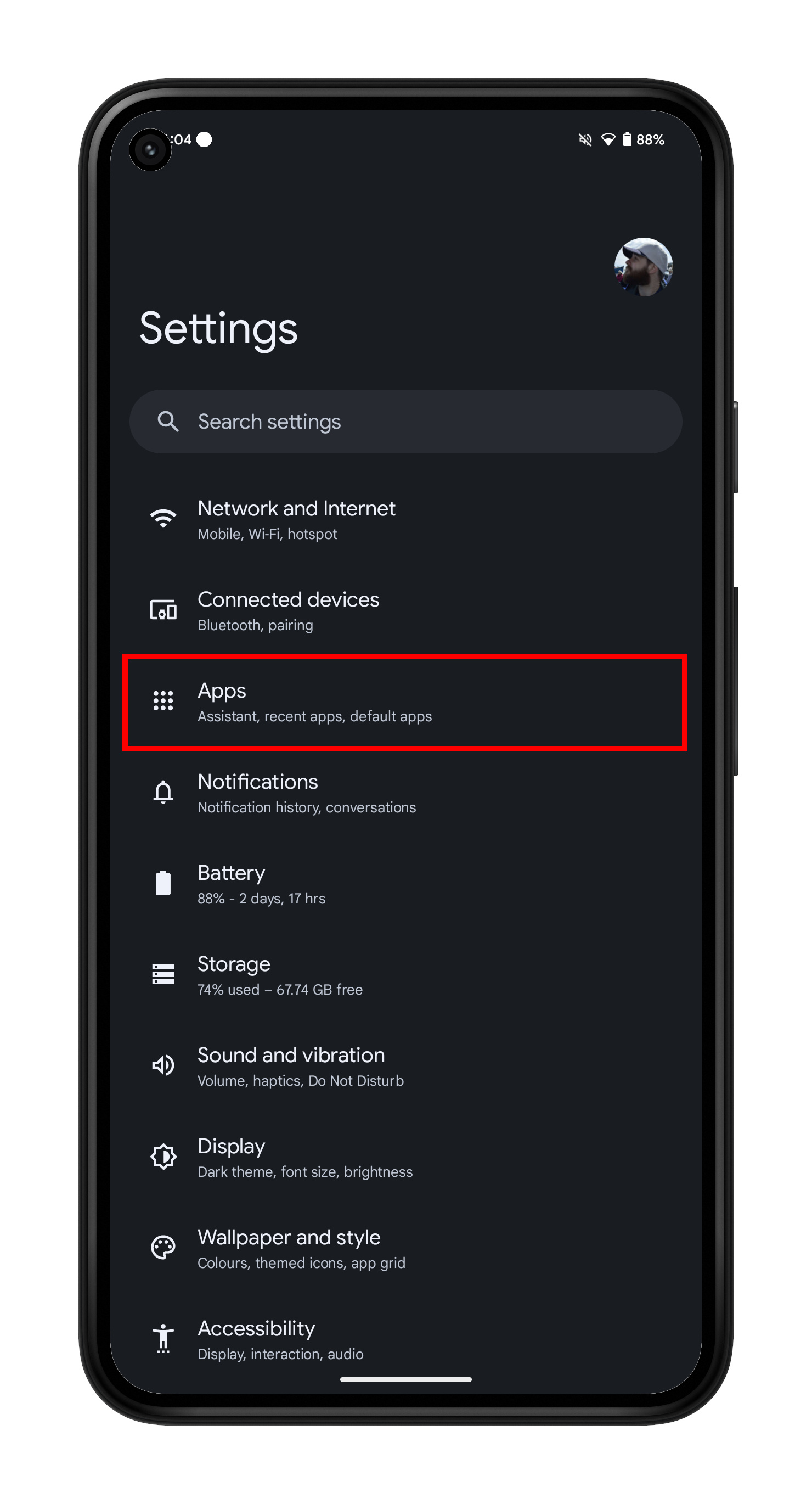
Step 2: Select the Apps or Apps & notifications option.
Step 3: You may need to select See all apps to view all opened applications.

Step 4: Tap the application you wish to force close.
Step 5: Choose the Force stop option.
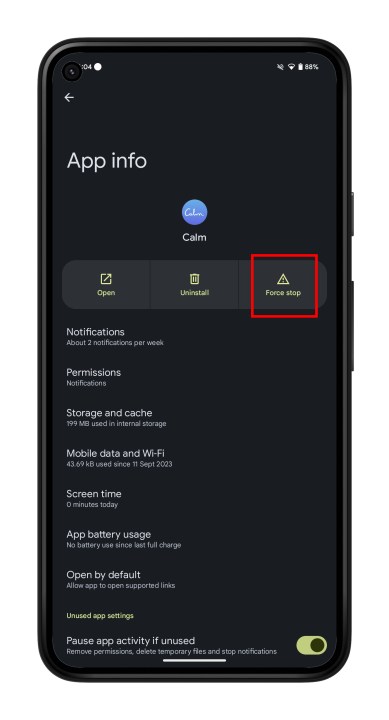
Step 6: Confirm your decision by selecting OK.
Editors’ Recommendations


