Google Smart Lock is a fancy bit of engineering that works across a variety of Google and Android platforms. When enabled and properly customized, it lets your devices automatically unlock in a variety of scenarios, such as keeping your phone unlocked when it detects you’re at home. Better yet, it allows you to store Chrome browser passwords for easy access, along with a few other cool tricks.
However, there will come a time when you probably want to remove an account from Google Smart Lock. Whether you no longer use the account or have sold an old device, there are plenty of reasons you’d want to clean out your Google Smart Lock profile. Thankfully, the process is remarkably simple. Here’s how to remove an account from Google Smart Lock.
Remove Smart Lock features on Android
If Smart Lock is causing problems for your Android phone, you have a few choices to handle it.
Step 1: Select the Settings app. This can look a little different based on the Android platform you’re using, but it should be easy to find. When in doubt, find the search function and search for “Smart lock,” which should bring up the right section.
Step 2: Select Security.
Step 3: Find the Smart lock section. It’s typically in Screen lock or Advanced settings. Once you find it, select it.

Image used with permission by copyright holder
Step 4: In the Smart Lock menu, you’ll see several control options. If you are interested in disabling automatic logins, you’ll want to go into each of the first three sections. Although you won’t be able to shut down Smart Lock entirely, all three categories give you a certain amount of control over how logins work and let you turn most features off so they don’t risk your security.
In On-body detection, look for the toggle to deactivate it entirely.
In Trusted places, choose the places you have activated (such as your home address), and then tap Turn off this location.
In Trusted devices, select the devices you want to remove (such as a Chromebook), and tap Remove trusted device.
If Android ever prompts you to reactivate any of these features, remember to refuse if you don’t want Smart Lock working again.
Step 5: If your phone doesn’t offer these settings, you can instead access the feature by loading the Chrome app on your smartphone. Once the app is open, simply click the three dots icon at the top of the screen, then click Settings. From here, open the Password Manager tab. This gives you access to all your saved passwords and allows you to remove or disable their automatic input.
Remove Smart Lock on the Chrome browser
Google Smart Lock also covers password management in the Chrome browser — a very different field, but one where you can still encounter problems. Here, Google Smart Lock acts a lot like a password manager, collecting and storing passwords for the sites you visit.
The problem is that these smart login features don’t always work, especially if you recently updated your password and Chrome has trouble understanding what’s changed. Or you may just want to delete saved logins to improve your security. Here’s how you can remove account info at any time.
Step 1: Go to your Google Account Passwords page, and log in if necessary. This page is currently how Google manages all of your Chrome passwords. Here, you will see all the sites and apps that Chrome has saved login information for and notifications about which sites may be using compromised passwords.
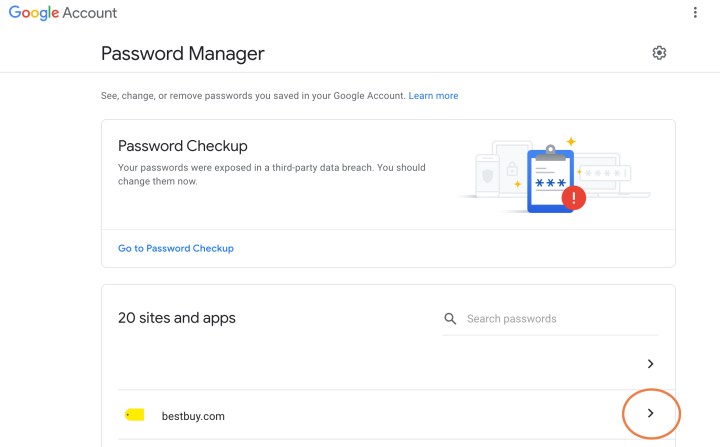
Image used with permission by copyright holder
Step 2: Find the website where you want to disable your password on Google’s list. Select it, and log in with your Google Account information again if necessary.
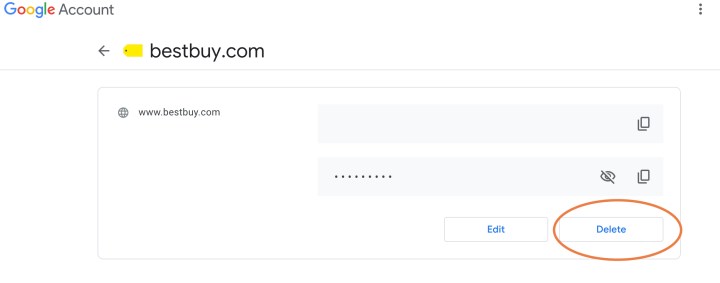
Image used with permission by copyright holder
Step 3: You’ll now see your login info for that site. Select the Delete option and confirm that you want to delete it. That particular account will now be removed from your passwords page.
Step 4: If you want to keep Google from saving future passwords, it’s a good idea to select the cog icon in the passwords home page, and make sure to enable Offer to save passwords, so you’ll always have a choice to save account information. You may also want to disable Auto sign-in.
Editors’ Recommendations


